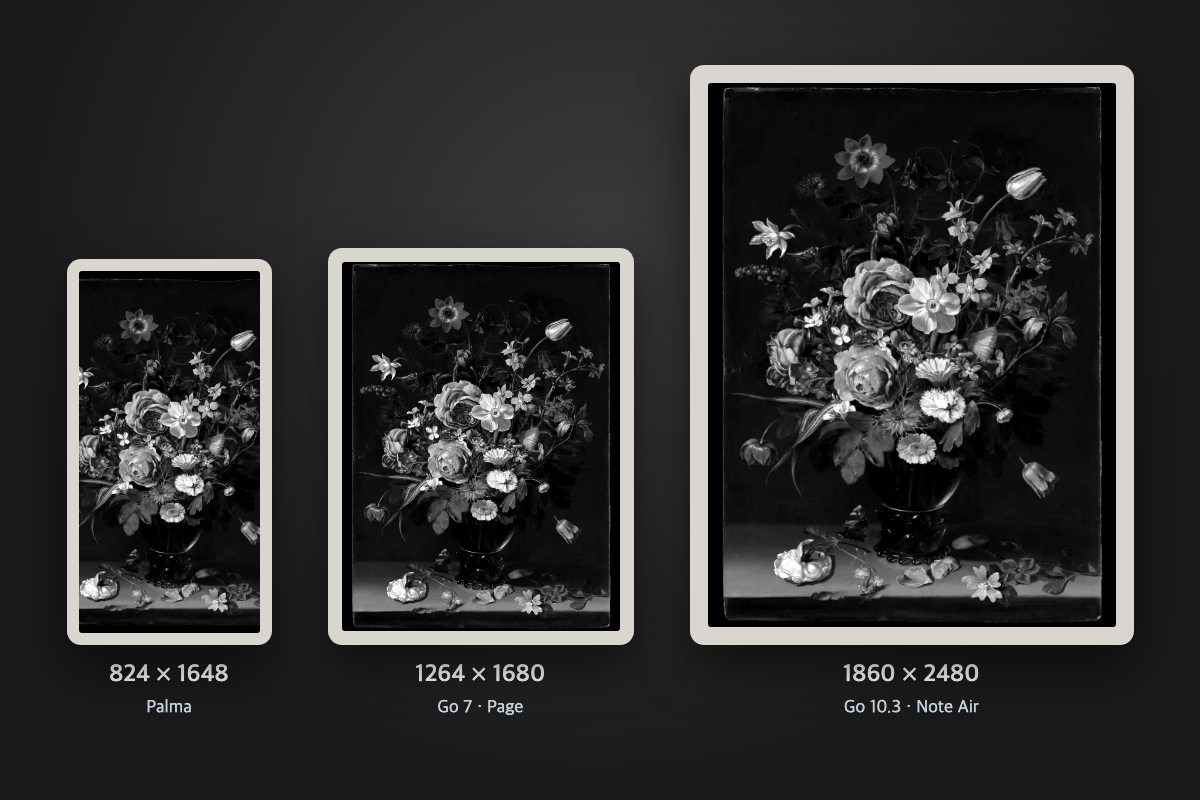
The right BOOX screensaver size is the screen's own resolution. In portrait, the Go 7 and Page are 1264×1680, the Palma is 824×1648, the 6-inch Go 6 is 1072×1448, and the 10.3-inch models are 1860×2480. Make your image at exactly that size and the device shows it without stretching or cropping.
Below is the screensaver size for every model whose spec I could confirm on BOOX's own store, followed by the steps to change the sleep screen and lock screen wallpaper on a BOOX.
BOOX screensaver size by model
| Model | Screen | Screensaver size (width×height) | Ratio |
|---|---|---|---|
| Go 6, Go 6 Gen II, Poke5 | 6" | 1072×1448 | about 3:4 |
| Palma, Palma 2, Palma 3 | 6.13" | 824×1648 | 1:2 |
| Palma 2 Pro (color) | 6.13" | 824×1648 (color 412×824) | 1:2 |
| Go 7, Page | 7" | 1264×1680 | 3:4 |
| Go Color 7, Go Color 7 Gen II | 7" color | 1264×1680 (color at 150 ppi) | 3:4 |
| Go 10.3 | 10.3" | 1860×2480 | 3:4 |
| Note Air4 C, Note Air6 C, Tab Ultra C Pro | 10.3" color | 1860×2480 (color 930×1240) | 3:4 |
| Note Max | 13.3" | 2400×3200 | 3:4 |
| Tab X C | 13.3" color | 2400×3200 (color 1200×1600) | 3:4 |
Source: the spec section of each product on BOOX's official store (shop.boox.com), checked in November 2026. BOOX lists resolutions in landscape (for example 1680×1264); they're flipped to portrait here because that's how the screensaver is shown.
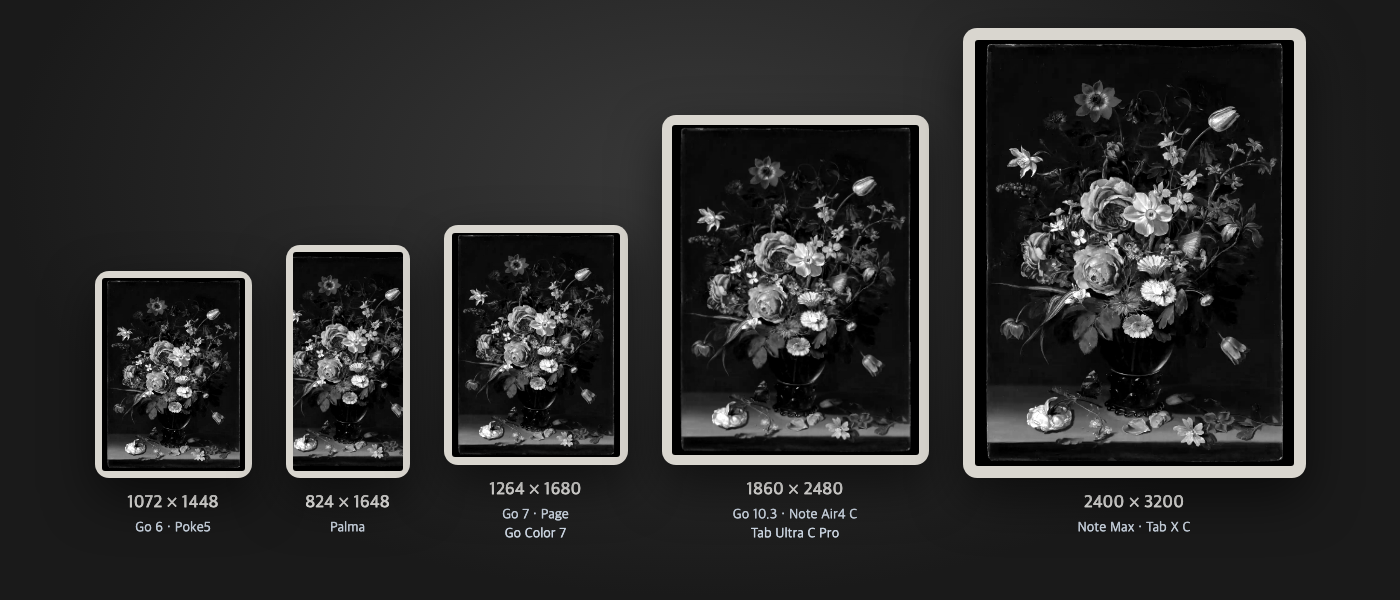
Color models: use the black-and-white resolution
Kaleido 3 color models such as the Go Color 7 and Note Air4 C show black and white at 300 ppi and color at 150 ppi. The color layer is coarser, but the screen still has the same number of pixels, so make the wallpaper at the black-and-white resolution (the first number in the table).
Model not listed?
I left out every model I couldn't confirm on an official page. On any Android e-reader there's a quick way to find out: take a screenshot on the device and check the image's width and height. That is the screen resolution, and the size your screensaver should be.
The ratio matters more than the size
Every 6", 7", 10.3" and 13.3" BOOX is 3:4. A 3:4 image can be scaled up or down and used on almost every model. The Palma is the exception: at 1:2 it is much taller, so a 3:4 image either loses its sides or gets blank bands above and below. Make a separate image for the Palma.
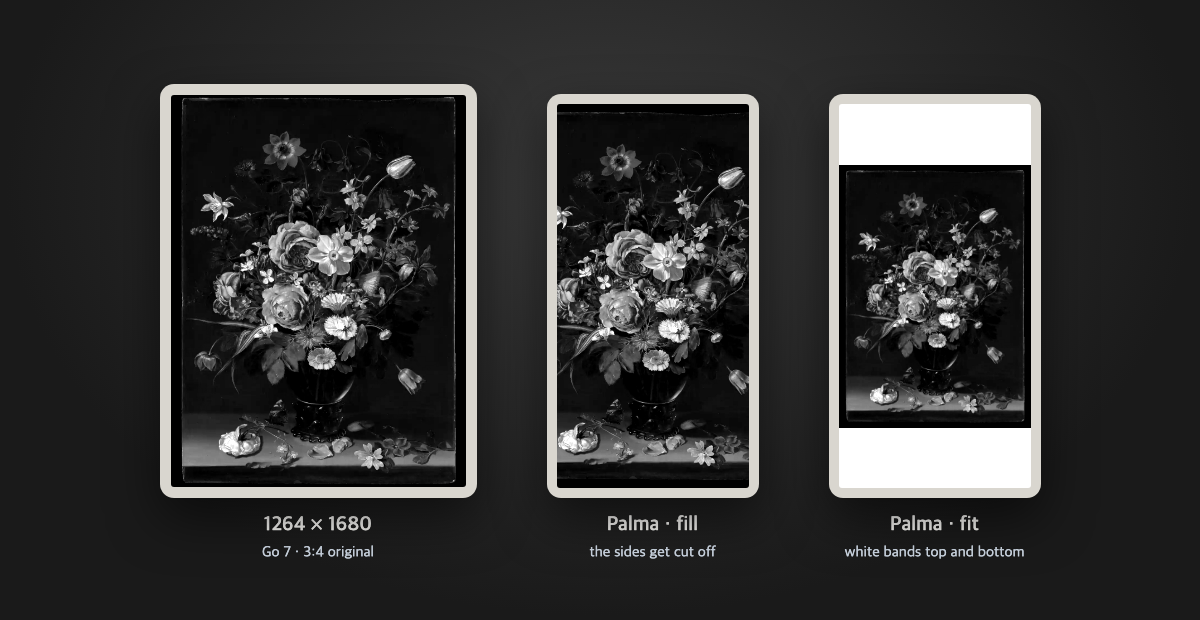
Picking a good e-reader wallpaper
- E-ink shows shades of gray. Drawings, prints and high-contrast images look sharper than busy color photos.
- Large dark areas make the whole screen look muddy. Images with a light background look more like paper.
- Save it as a PNG at the exact screen resolution, so the device doesn't have to scale or crop it.
How to change the screensaver on a BOOX
BOOX calls the sleep screen and lock screen image the "Screensaver". The steps below are what it looks like on a BOOX with the English menu.
- Copy your image to the e-reader's storage, over USB or with BOOX's Push transfer.
- In the bottom bar, open Storage → Images and long-press the image.
- In the file info panel, tap Set As.
- Choose Set as screensaver for the lock screen, or Set as Power-Off image for the screen shown when the device is off, then confirm.
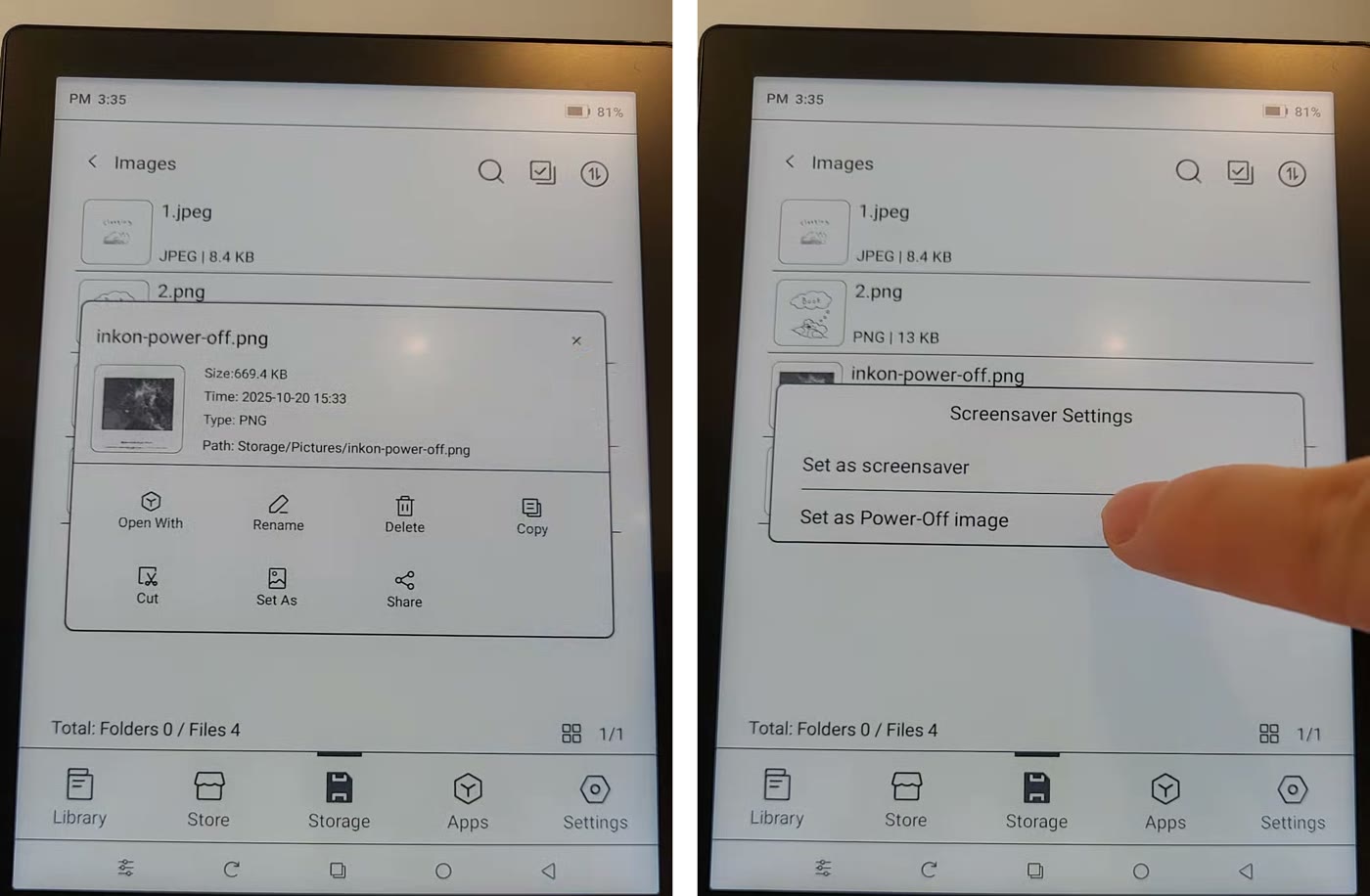
Long-pressing sets a single image. To rotate through several, go to Settings → Desktop & Screensaver → Screensaver, choose Images and use Select Images to pick more than one. Those menu names come from the BOOX help center (help.boox.com) and can differ slightly between firmware versions.
One thing from BOOX's help center worth knowing: if your screensaver includes the clock, auto shutdown won't kick in. Use an image screensaver without the clock if battery life matters.
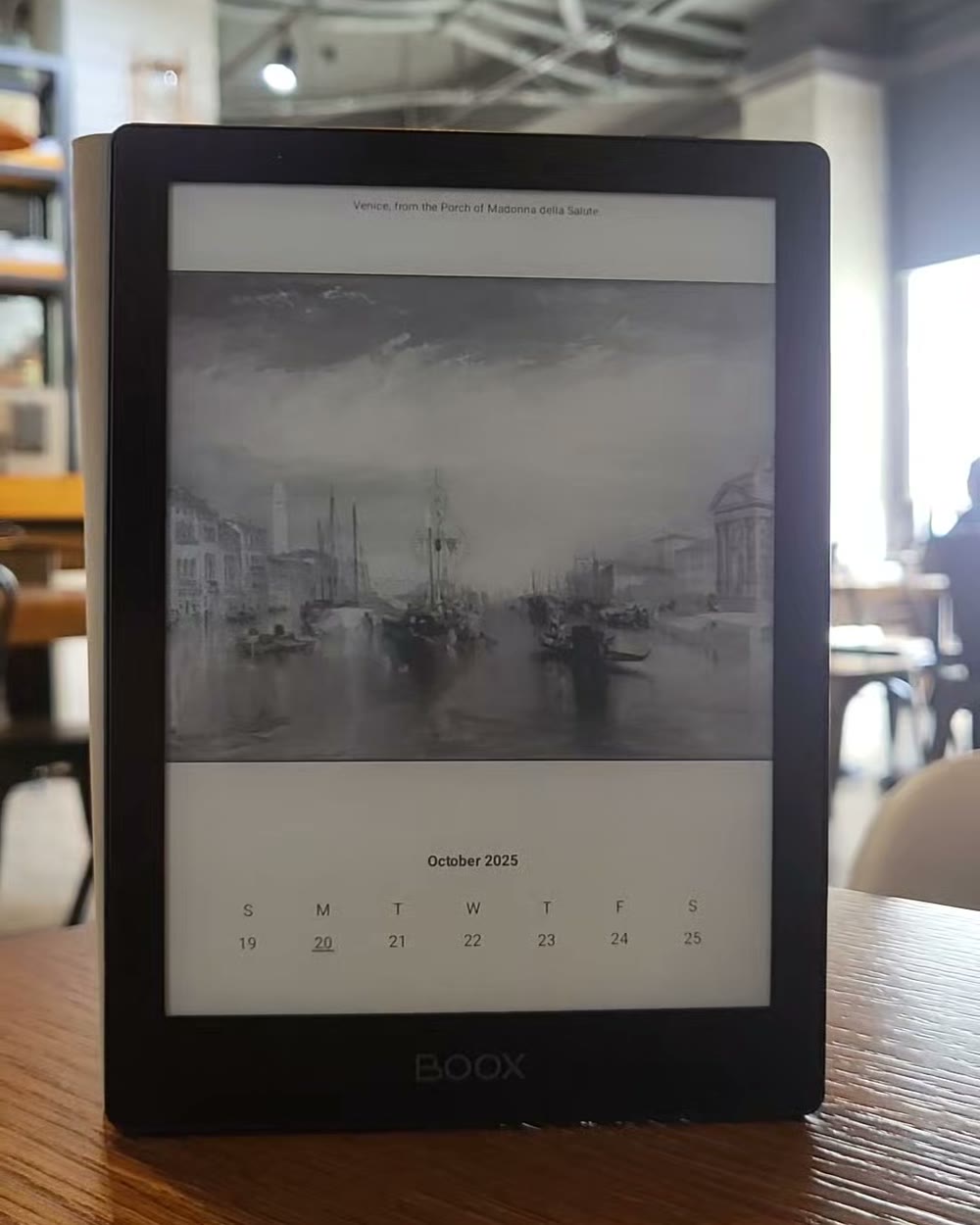
If you want it to change every few hours
The steps above show the images you picked, the same ones every day. If resizing and copying new images gets old, an app can make them at your screen's size and swap in a new one every few hours.
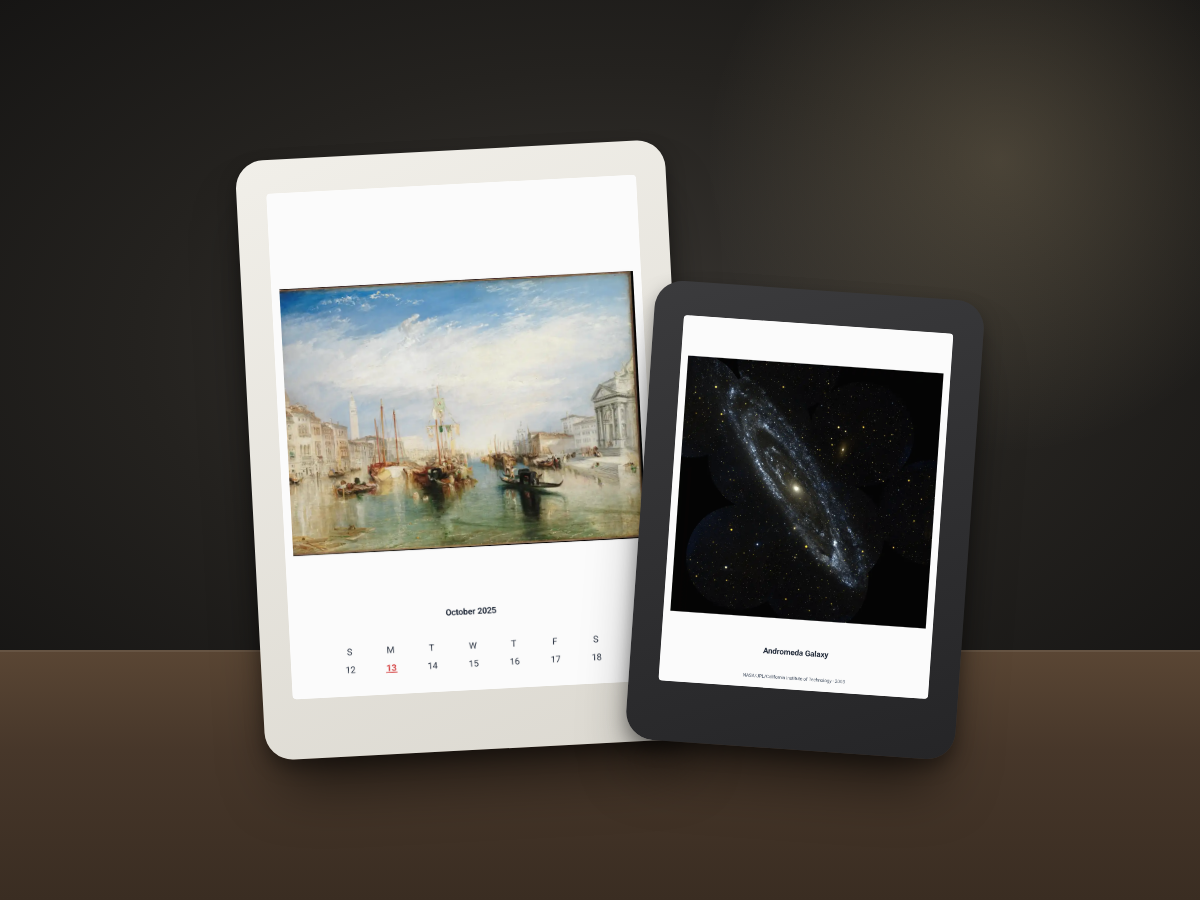
Ink On is an Android e-reader app built for this (Google Play only). It builds lock screens from 150+ museum, space and art photos, with an optional calendar or date, at your device's resolution, and refreshes them every few hours. No account, no cloud; it works offline.
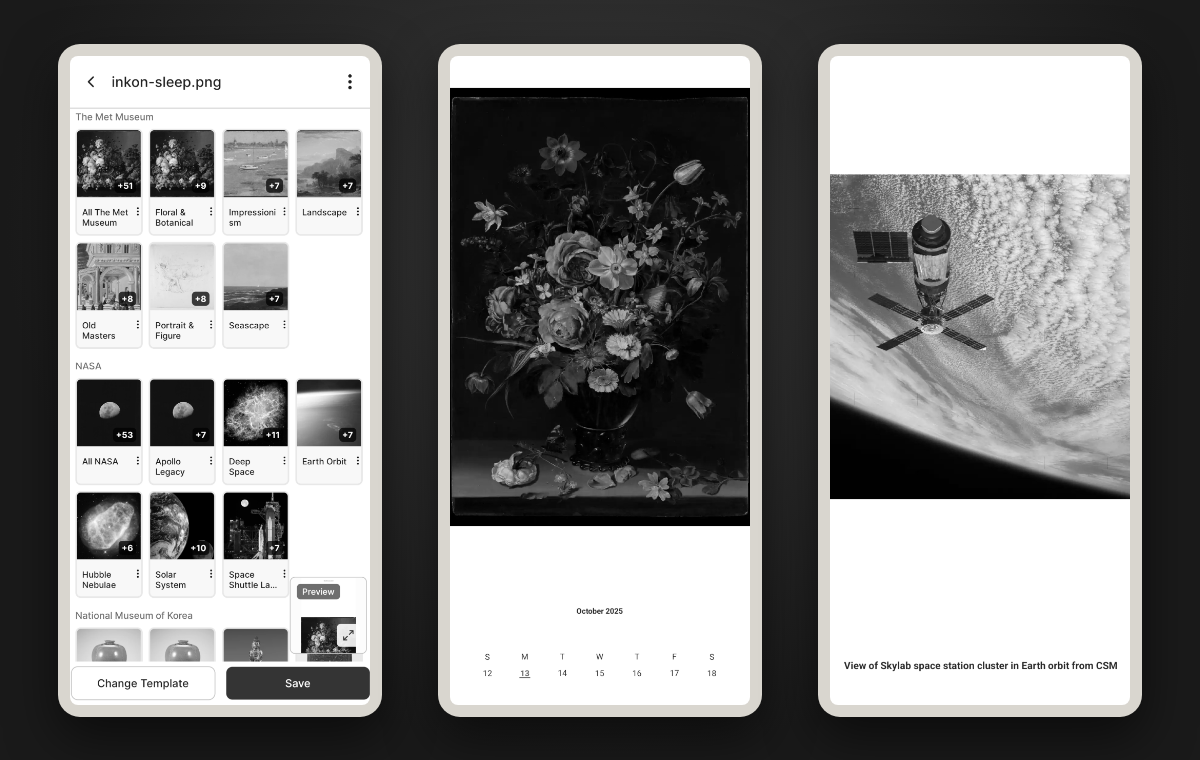
You set it up once:
- In Ink On, pick the folder to save images to and create the first screen.
-
In the BOOX steps above, set
inkon-sleep.pngfrom that folder as the Screensaver image andinkon-power-off.pngas the Power off image. - From then on the app rewrites the same files with new images. BOOX can freeze newly installed apps, which stops the automatic refresh, so turn off app freezing for Ink On in the device settings.
For other ways to put an unused e-reader to work, such as a desk calendar or a picture frame, see what to do with an old e-reader.
Quick reference
- 6" (Go 6, Poke5): 1072×1448
- Palma: 824×1648 (1:2, make a separate image)
- 7" (Go 7, Page, Go Color 7): 1264×1680
- 10.3" (Go 10.3, Note Air4 C, Tab Ultra C Pro): 1860×2480
- 13.3" (Note Max, Tab X C): 2400×3200
- Where to change it: Settings → Desktop & Screensaver → Screensaver → Images; the power-off image is under Power off