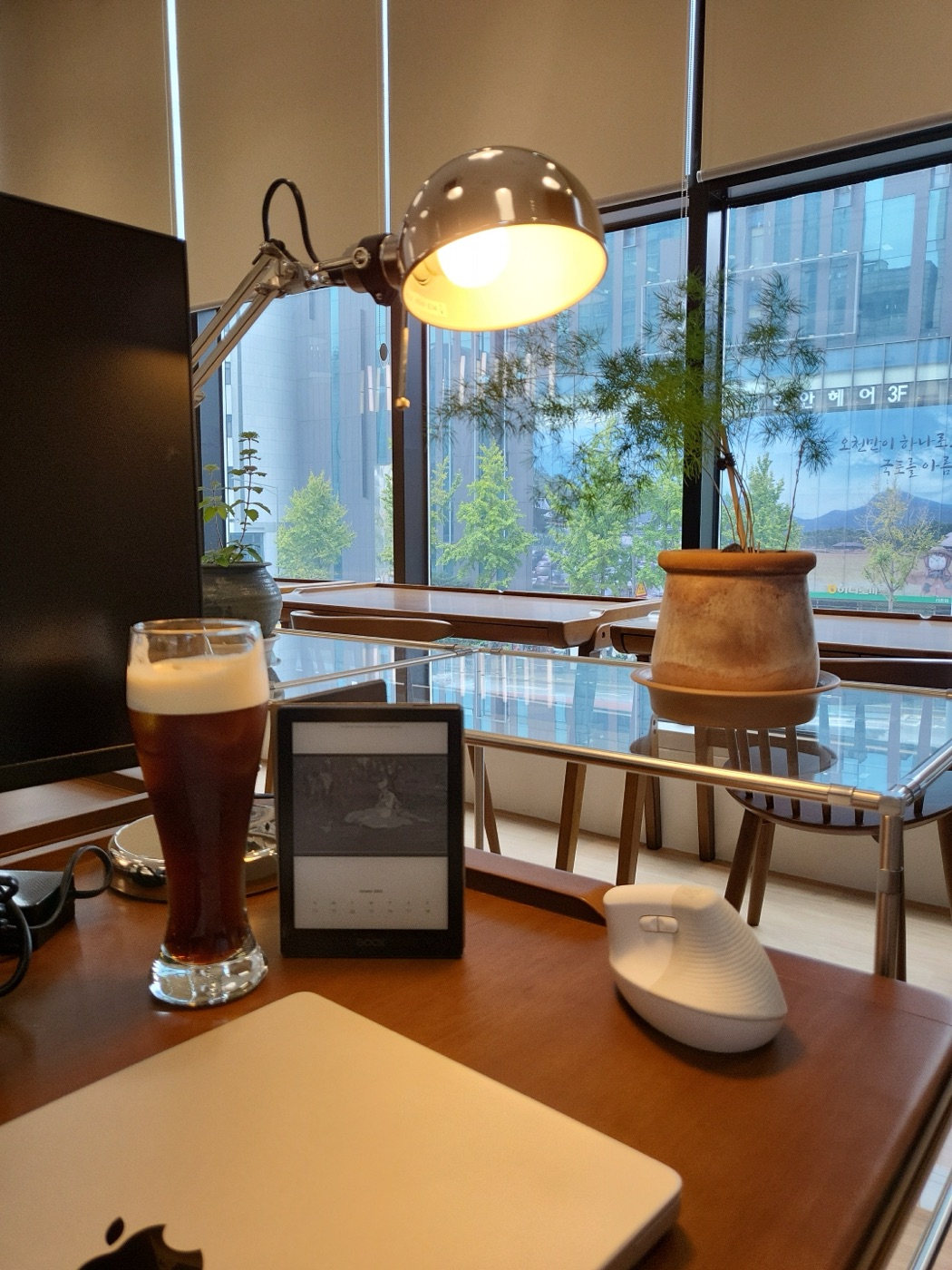
There are four good things to do with an old e-reader: an e-ink desk calendar, a bedside clock, an e-ink art frame, and a recipe or notes screen in the kitchen. E-ink only uses power when the picture changes. Whatever is on the screen stays there with the power off, which makes an e-reader a natural always-on display.
Which of these your device can do comes down to two questions. Does it run Android with the Google Play Store? And can you set its sleep screen (screensaver, lock screen) to your own image? Check your device first, then pick a use below. Each one lists what it needs.
Start with what your e-reader can run
| Device | Installs apps | What you can do |
|---|---|---|
| Android e-readers with the Play Store (Onyx Boox, Meebook, Bigme, and others) | Yes | Everything in this post |
| Android-based models with app installs locked | Depends on the model | An art frame or fixed calendar, if the settings let you change the sleep image |
| Kindle, Kobo | No (not Android) | Reading, and built-in options such as showing the current book cover while asleep |
Play Store support varies by model and firmware, even within one brand. Older Onyx Boox devices may need their GSF ID registered in settings before the Play Store works. Kindle and Kobo run their own operating systems, so Play Store apps can't be installed on them.
1. Turn it into an e-ink desk calendar
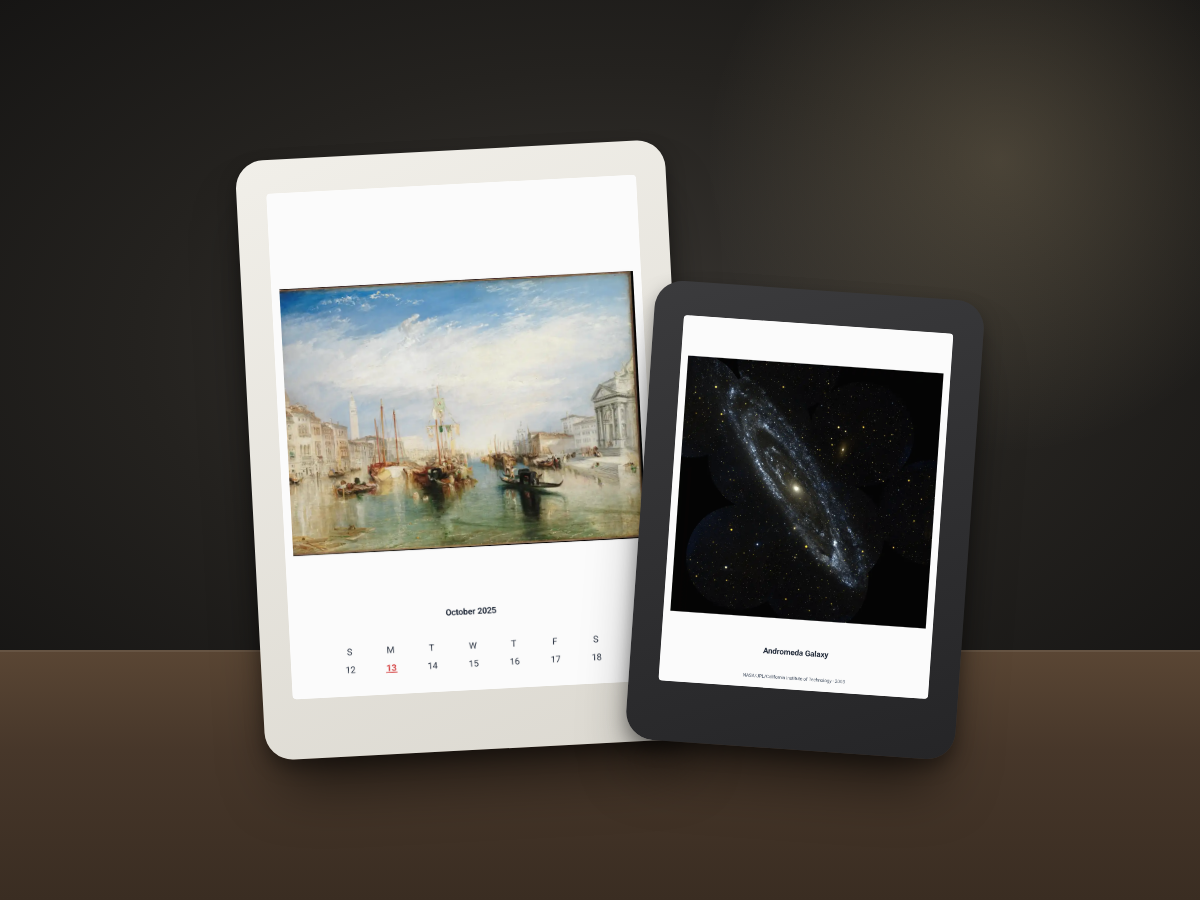
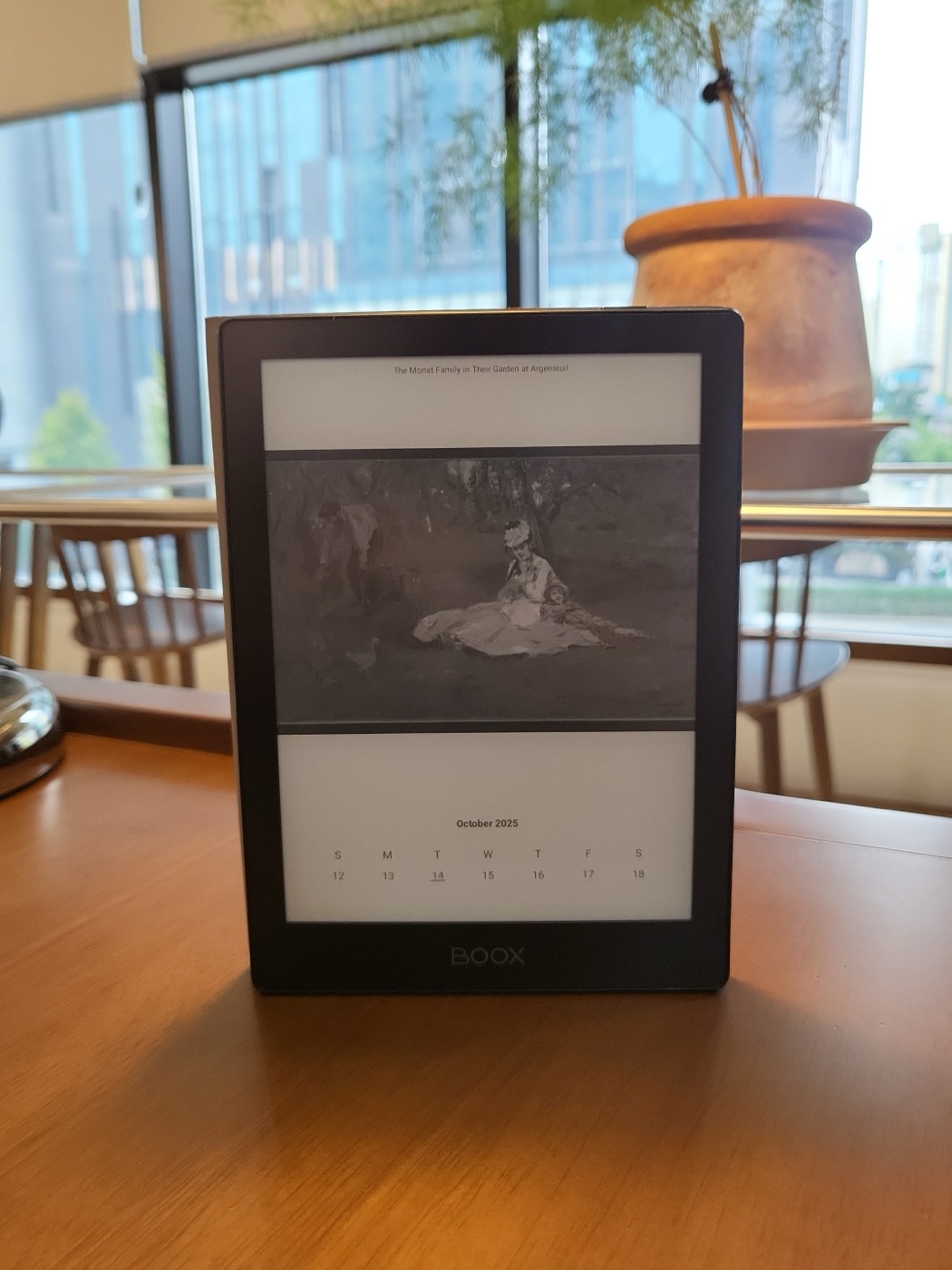
This is the lowest-effort option. Put a calendar on the sleep screen, and while the device is locked it keeps showing the date and the month on your desk. There is no backlight to glare at you, and no paper page to flip each month.
What you need
- A device that lets you set its sleep screen to your own image
- A way to update that image when the date changes, by hand or with an app
- A stand or a folding cover to prop it up
By hand, you make a calendar image at your screen's aspect ratio and drop it into the sleep screen folder. The catch is that you have to remake it every day, or at least every month. On an Android e-reader, an app can do that part.
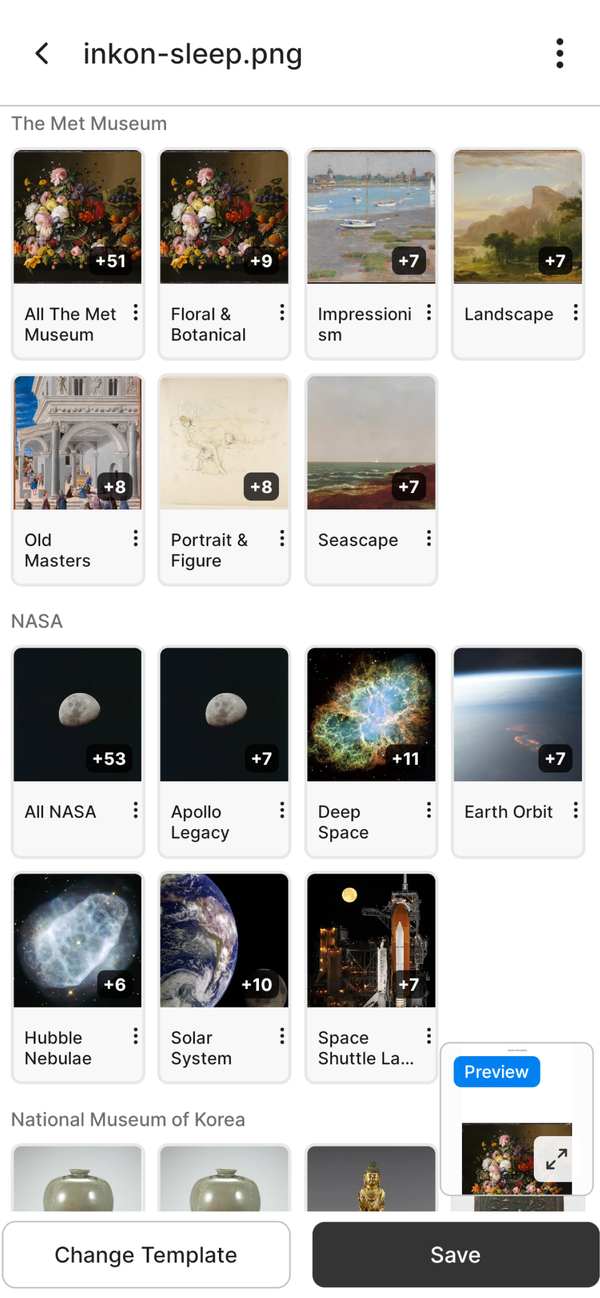
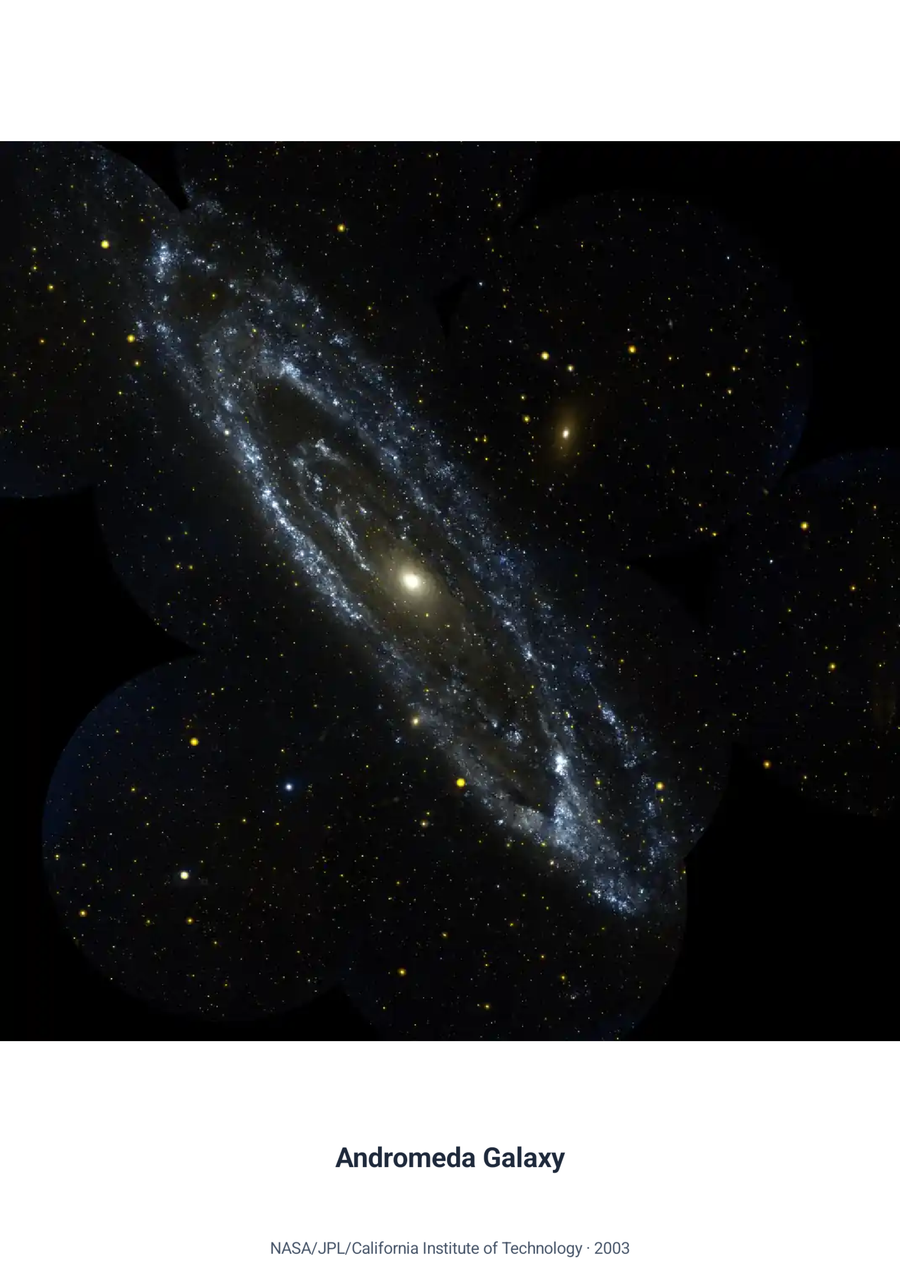
I built Ink On for exactly this. It draws a monthly calendar, a weekly calendar, today's date, or your own text on top of a painting or a space photo, and saves the result to a folder you choose. Point your sleep screen at that image once, and Ink On redraws it with the current date at the interval you pick, anywhere from 15 minutes to 7 days. It runs entirely on the device, with no account or cloud. It's available on Google Play.
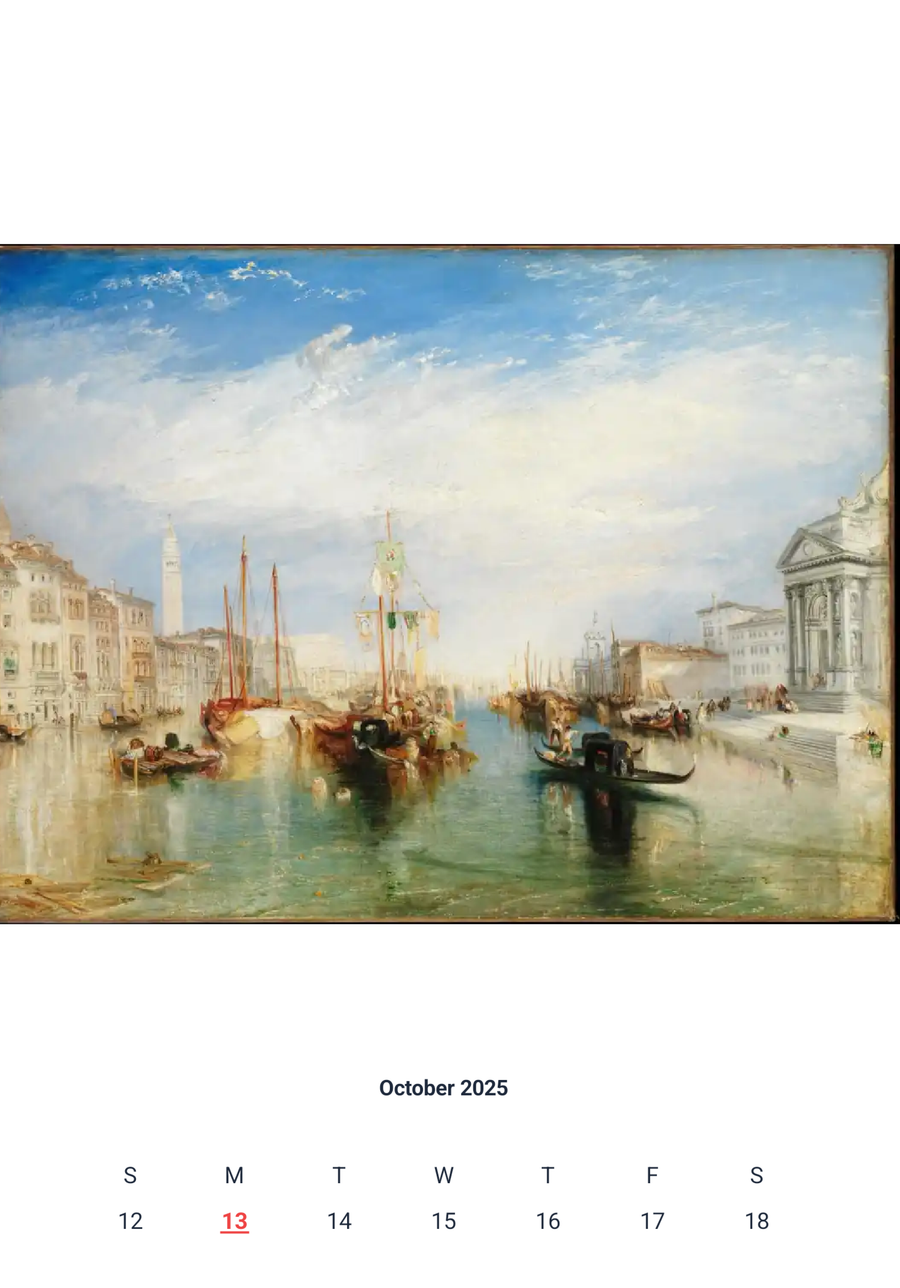
Android doesn't guarantee exact timing for background work, so an update may arrive minutes late. If updates stop altogether, turn off battery optimization for the app in your device settings. When the sleep screen doesn't change at all, the cause is usually the device's own sleep screen setting: check that it points to the folder the app saves into.
For the sleep screen resolution of each model and how to change the screensaver on an Onyx Boox, see BOOX screensaver size for every model.
How this compares to a Raspberry Pi e-ink calendar
Search for "e ink calendar" and most results are DIY builds: a Raspberry Pi wired to an e-paper panel. You can customize everything, but you buy a board and a panel, then sort out wiring and code. An old Android e-reader already has the screen, the battery, and the case. If one app gets you the same result with no soldering, that's the faster route.
2. Use it as a bedside clock
A clock that shows the minute has to redraw the screen constantly. That means a clock app running with the screen kept on, not a sleep screen.
- You need: a device that can install a clock app from the Play Store, and a spot near a charger.
- Set up: set the screen timeout to its longest value, or turn on the app's keep-screen-on option. Switch the frontlight off at night.
- Watch out for: frequent redraws leave ghosting on e-ink. Hide the seconds and show minutes only.
If you only need today's date, not the time, a sleep screen like the desk calendar above is far easier on the battery. Ink On is not a clock app and doesn't show the time to the minute. By the bed, I use it to show today's date and a single picture.
3. Make it an e-ink art frame
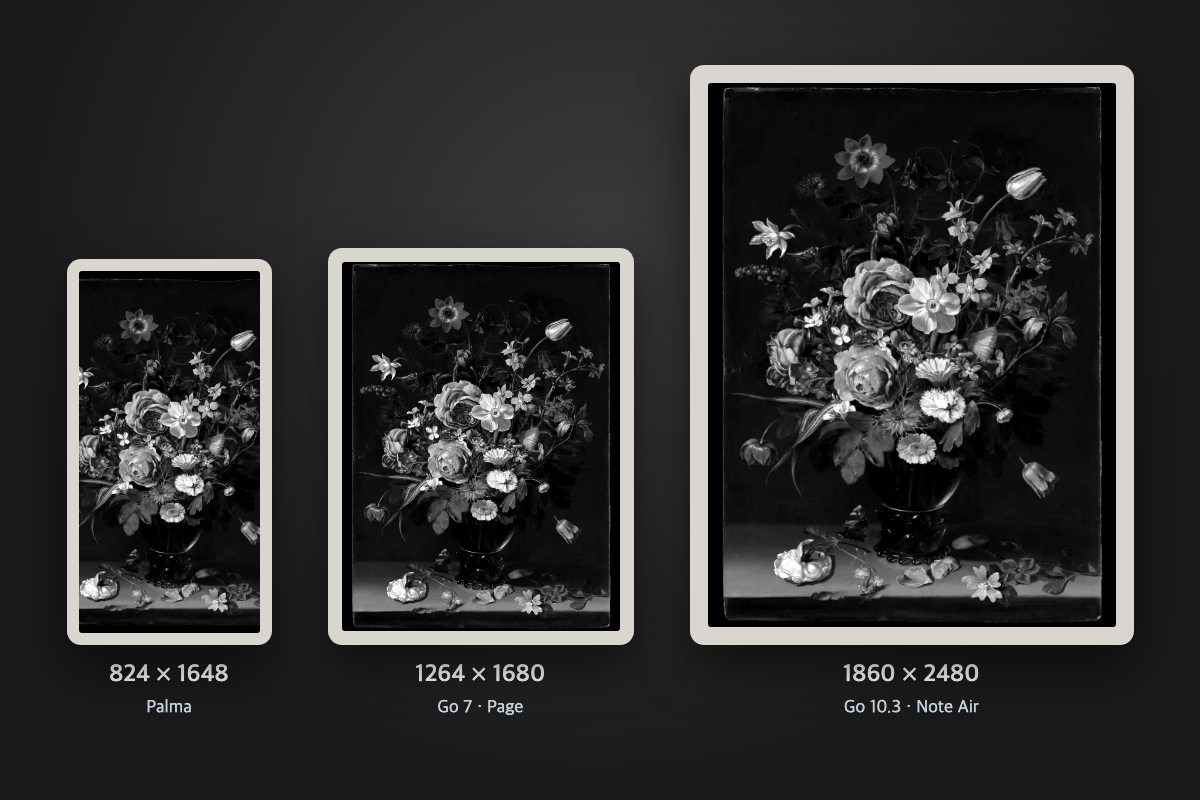
Put a picture on the sleep screen and stand the device on a shelf, and you have a small frame that holds its image with no power. On a black-and-white screen, high-contrast prints, drawings, and black-and-white photos look best. On a color e-ink device, muted paintings work well.
To rotate the picture every few hours, Ink On ships with more than 150 public-domain images from The Met, NASA, and the National Museum of Korea, and you can build your own collection from your photos. If a picture looks washed out on a black-and-white screen, raise the contrast in the app's settings.
4. Use it for recipes, notes, or sheet music
The screen doesn't glow and the battery lasts when it stays on, so it suits anything you look at for a long time.
- Recipes: save the dishes you cook often as PDFs and prop the reader up in the kitchen. Near the sink, put it in a zip bag.
- Sheet music: on a 10-inch or larger device, letter or A4 sheet music PDFs are readable.
- Notes and to-dos: on Android, install a notes app that syncs with your phone and keep a shopping list or today's tasks open.
A small 6-inch reader works best for text. Image-heavy PDFs mean constant zooming and panning.
Before you leave it on for good
- Battery: old devices can have swollen batteries. If the back is lifting or the screen is pushed up, don't use it.
- Wi-Fi: if the use works offline, turn Wi-Fi off and the battery lasts longer. Ink On's automatic updates work without Wi-Fi.
- A stand: a folding cover or a small phone stand is enough.
Questions
Can I make an e-ink calendar from a Kindle?
Kindle isn't Android, so it can't install Play Store apps, and it has no official way to set your own sleep screen image. Using an app like Ink On for a calendar works only on Android e-readers with the Play Store. This post doesn't cover unofficial methods such as jailbreaking.
Does leaving the sleep screen up drain the battery?
E-ink uses almost no power to hold an image. Redrawing the screen and Wi-Fi are what use the battery, so the longer the update interval, the longer it lasts. For a desk calendar that only needs the right date, every few hours is plenty.
Is a screensaver the same as a sleep screen or lock screen?
On e-readers, mostly yes. They all mean the image shown when the device is locked or asleep. Different brands just name it differently.
Wrapping up
When a new reader arrives, the old one tends to end up in a drawer. Even after you've stopped reading on it, it's still good at showing the date and hanging a picture. If yours is an Android e-reader with the Play Store, start by standing it on your desk tonight.